
DWG to PDF conversion streamlines design sharing‚ offering a universally accessible format without requiring specialized CAD software like AutoCAD.
AnyDWG Converter‚ available on the Microsoft Store‚ provides a robust solution for batch conversions‚ handling DWG‚ DXF‚ and DWF files efficiently.
What is a DWG File?
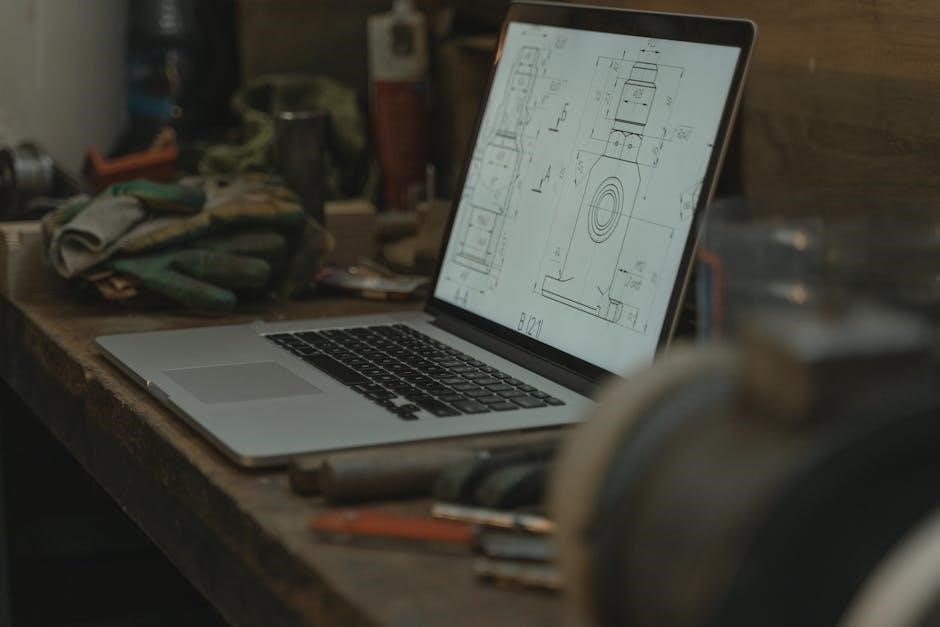
DWG‚ standing for Drawing‚ is a proprietary binary file format widely used for storing two-dimensional and three-dimensional design data and engineering drawings. Originally developed by Autodesk for AutoCAD‚ it has become an industry standard across various Computer-Aided Design (CAD) software applications.
These files contain vector-based information‚ meaning designs are defined by mathematical equations rather than pixels‚ ensuring scalability without loss of quality. DWG files can encompass a wide range of elements‚ including lines‚ curves‚ text‚ and dimensions‚ making them essential for architects‚ engineers‚ and designers. They are fundamental to the creation and modification of technical drawings.
Why Convert DWG to PDF?
Converting DWG to PDF offers significant advantages for sharing and collaborating on designs. PDFs are universally accessible‚ viewable on virtually any device without requiring expensive CAD software like AutoCAD. This broad compatibility ensures everyone involved in a project can easily access and review the drawings.
PDFs also maintain the visual integrity of the original DWG file‚ preserving vector data for crisp‚ clear images. Furthermore‚ PDFs are generally smaller in file size than DWGs‚ simplifying email transmission and storage. Converting to PDF enhances security by preventing unintended modifications to the original design.
Methods for DWG to PDF Conversion
Several methods exist for DWG to PDF conversion‚ including dedicated software like AnyDWG‚ utilizing AutoCAD directly‚ and employing convenient online converters.
Using Dedicated DWG to PDF Converter Software (AnyDWG)
AnyDWG Converter stands out as a full-featured‚ standalone solution for converting DWG files to PDF‚ DXF to PDF‚ and DWF (including DWFX) to PDF formats. A significant advantage is its ability to perform these conversions without necessitating the installation of AutoCAD‚ making it accessible to users who don’t have or need the expensive CAD program.
Available for free download and installation on Windows via the Microsoft Store‚ AnyDWG offers a user-friendly interface and efficient batch conversion capabilities. This software is particularly useful for professionals and individuals frequently dealing with CAD drawings who require a quick and reliable conversion process.
Utilizing AutoCAD for Conversion
AutoCAD‚ as the native software for DWG files‚ inherently possesses robust PDF conversion capabilities. While requiring an existing AutoCAD license‚ this method ensures high fidelity and accurate representation of the original drawing’s details. The process typically involves using the “PLOT” command and selecting a PDF plotter‚ allowing users to customize plot settings.
Users can control various aspects of the PDF output‚ including paper size‚ plot scale‚ layer visibility‚ and color settings. This direct conversion approach is ideal for maintaining precise control over the final PDF document‚ especially when complex drawings require specific configurations.
Online DWG to PDF Converters
Online DWG to PDF converters offer a convenient‚ accessible solution for quick conversions without software installation. Numerous web-based tools are available‚ providing a user-friendly interface for uploading DWG files and downloading the resulting PDF. However‚ these services often have limitations regarding file size‚ the number of conversions per day‚ or potential privacy concerns.
While suitable for simple drawings‚ complex designs might experience fidelity loss or formatting issues. It’s crucial to evaluate the converter’s security protocols before uploading sensitive drawings‚ as files are processed on external servers. Free options exist‚ but paid services generally offer enhanced features and reliability.
Detailed Look at Software Options
Software options like AnyDWG Converter and AutoCAD provide robust DWG to PDF conversion capabilities‚ differing in features‚ cost‚ and complexity for users.
AnyDWG Converter: Features and Benefits
AnyDWG Converter stands out as a dedicated solution‚ eliminating the need for AutoCAD to convert DWG‚ DXF‚ and DWF files to PDF. This software excels in batch conversion‚ significantly boosting productivity for projects involving numerous drawings.
Its user-friendly interface simplifies the process‚ making it accessible even for those without extensive CAD experience. Key benefits include high conversion accuracy‚ preserving the integrity of original designs‚ and support for various PDF versions.
Furthermore‚ AnyDWG Converter offers customization options‚ allowing users to control output quality and page layouts; Available on the Microsoft Store‚ it provides a convenient and cost-effective alternative to more complex CAD software suites.
AutoCAD’s Built-in PDF Conversion Process
AutoCAD offers a direct route for converting DWG files to PDF‚ leveraging its native capabilities. The process typically involves using the “PLOT” command‚ selecting a PDF plotter (like “DWG to PDF.pc3”)‚ and configuring plot settings.
Users can control paper size‚ plot scale‚ layer visibility‚ and other parameters to customize the PDF output. While effective‚ this method can be less efficient for batch conversions compared to dedicated converter software.
AutoCAD’s built-in functionality provides a reliable option for occasional conversions‚ particularly when precise control over plot settings is crucial‚ but requires a licensed version of the software.
Comparison of Popular Online Converters
Online DWG to PDF converters offer convenience‚ eliminating software installation. However‚ they vary significantly in features and limitations. Many free options impose file size restrictions or watermarks on the converted PDFs.
Popular choices include Zamzar‚ Convertio‚ and OnlineConvertFree‚ each with differing supported file types and conversion speeds. Security is a concern‚ as uploading sensitive DWG files to third-party servers carries inherent risks.
Paid online services generally provide larger file support‚ faster conversions‚ and enhanced security‚ but require a subscription or per-conversion fee. Careful evaluation of privacy policies is essential.

Batch Conversion Techniques
Batch conversion significantly boosts productivity when handling numerous DWG files‚ utilizing tools like AnyDWG or AutoCAD to process multiple drawings simultaneously.
Batch Converting with AnyDWG
AnyDWG Converter excels in batch processing‚ allowing users to convert multiple DWG‚ DXF‚ and DWF files to PDF in a single operation. This feature dramatically reduces the time and effort compared to converting files individually.
The software’s interface facilitates easy addition of files or entire folders to the conversion queue. Users can then customize settings – such as paper size‚ layer visibility‚ and PDF quality – that apply to all selected files.
AnyDWG’s batch capabilities are particularly useful for architects‚ engineers‚ and designers who frequently work with large sets of drawings‚ ensuring efficient workflow and output.
Batch Conversion within AutoCAD
AutoCAD offers built-in batch processing capabilities for converting DWG files to PDF‚ though it requires a slightly more involved setup than dedicated converter software. The Publish command is central to this process‚ allowing users to create publish sets.
These sets define the layouts‚ page sizes‚ and other settings for the PDF output. Users can then select multiple DWG files to be processed using the defined publish set‚ automating the conversion.
While powerful‚ AutoCAD’s batch conversion can be less intuitive for simple conversions compared to specialized tools like AnyDWG Converter.
Optimizing Batch Conversion Settings
Efficient batch conversion hinges on carefully configured settings. When using dedicated software like AnyDWG or AutoCAD’s publish feature‚ prioritize output quality versus file size. Higher resolution PDFs are ideal for detailed drawings‚ but increase file size considerably.
For large batches‚ consider utilizing lower resolutions if the primary goal is sharing for review rather than precise printing. Experiment with different paper sizes and orientation settings to best fit the content of your DWG files.
Properly configured settings minimize processing time and deliver optimal results.
PDF Output Options & Customization
Customization is key; adjust paper size‚ orientation‚ and layer visibility during conversion. Control PDF quality and resolution for balanced file size and detail.
Paper Size and Orientation Settings
Precise control over paper size and orientation is crucial for professional-looking PDF outputs. Conversion tools‚ like AnyDWG‚ typically offer a wide array of standard paper sizes – from common options like Letter and A4‚ to specialized engineering formats.
Users can seamlessly switch between portrait and landscape orientations to best fit their DWG designs. This ensures that drawings are presented correctly‚ avoiding unwanted cropping or distortion. Selecting the appropriate settings before conversion prevents the need for manual adjustments post-creation‚ saving valuable time and effort.
Proper configuration guarantees compatibility with printing and viewing requirements.
Controlling Layer Visibility in PDF
Managing layer visibility during DWG to PDF conversion is essential for creating targeted and informative documents. Many converters‚ including AnyDWG‚ allow users to selectively include or exclude layers from the final PDF output.
This feature is invaluable for simplifying complex drawings‚ focusing on specific design aspects‚ or creating customized views for different audiences. By controlling layer visibility‚ you can reduce file size and enhance clarity‚ ensuring that only relevant information is presented. This granular control streamlines collaboration and improves overall document management;
It’s a powerful customization option.
Adjusting PDF Quality and Resolution
Optimizing PDF quality and resolution is crucial for balancing file size and visual fidelity during DWG to PDF conversion. Higher resolutions result in sharper images and more detailed drawings‚ but also larger file sizes.
Converters like AnyDWG typically offer options to adjust DPI (dots per inch) settings‚ allowing users to tailor the output to their specific needs. For screen viewing‚ a lower resolution may suffice‚ while printing often requires a higher DPI for optimal results. Careful consideration of these factors ensures a practical and visually appealing PDF document.
Finding the right balance is key.

Troubleshooting Common Conversion Issues
Conversion problems can arise from missing fonts or layer display errors; addressing these ensures accurate PDF output from DWG files‚ maintaining design integrity.
Dealing with Missing Fonts
Font issues frequently occur during DWG to PDF conversion if the fonts used in the original drawing are not installed on the system performing the conversion. This results in font substitution within the PDF‚ altering the intended visual appearance of the design.
To resolve this‚ embedding fonts within the DWG file before conversion is crucial. Alternatively‚ converting to PDF using a converter that supports font substitution or allows you to specify fallback fonts can mitigate the problem. Ensuring consistent font availability across systems prevents unexpected visual changes and maintains design accuracy.
Consider rasterizing text as a last resort‚ though this sacrifices text editability.
Resolving Layer Display Problems
Layer visibility discrepancies between the DWG and the resulting PDF are common conversion challenges. Layers might appear missing‚ hidden‚ or incorrectly displayed due to differing layer states or settings during the conversion process.
Before converting‚ verify all necessary layers are unlocked and visible within the DWG file itself. Many converters‚ like AnyDWG‚ offer options to control layer visibility during PDF creation‚ allowing selective inclusion or exclusion of layers. Carefully review these settings.
If issues persist‚ experiment with different conversion profiles or rasterize complex layers.
Addressing File Size Concerns
Large DWG files often translate into substantial PDF sizes‚ hindering easy sharing and storage. Several factors contribute to this‚ including embedded raster images‚ complex geometry‚ and numerous layers. Optimizing the conversion process is crucial.
Reduce file size by purging unnecessary data within the DWG before conversion. Utilize PDF compression options available in converters like AnyDWG‚ adjusting quality settings to balance file size and visual fidelity. Consider rasterizing complex elements‚ but be mindful of potential quality loss.
Experiment with different PDF versions.
Security Considerations
Protecting sensitive DWG data before conversion is vital; consider encryption. PDF security options‚ like password protection‚ restrict access and editing post-conversion.
Protecting DWG Files Before Conversion
Prior to converting DWG files to PDF‚ especially those containing proprietary or confidential designs‚ implementing security measures is paramount. Consider encrypting the original DWG files using password protection within AutoCAD or dedicated DWG security software. This adds a crucial layer of defense against unauthorized access.
Regularly backing up your DWG files is also essential‚ ensuring data recovery in case of accidental loss or corruption. Before sharing files for conversion‚ audit them to remove any unnecessary sensitive information. Remember‚ converting to PDF doesn’t automatically erase the original data’s vulnerability; proactive DWG protection is key.
PDF Security Options (Password Protection)
PDFs offer robust security features‚ notably password protection‚ to control access to sensitive design data post-conversion. Most DWG to PDF converters‚ including AnyDWG and AutoCAD’s built-in tools‚ allow you to set an ‘Open Password’ restricting access entirely‚ and a ‘Permissions Password’ limiting actions like printing‚ editing‚ or copying.
Choosing strong‚ unique passwords is crucial. Consider encryption levels offered by the converter; higher levels provide stronger protection. Regularly review and update passwords. Remember‚ while PDF security enhances protection‚ it’s not foolproof; a layered security approach‚ starting with DWG file protection‚ is best practice.

Free vs. Paid Conversion Tools
Free online converters have limitations‚ like file size restrictions and potential security risks‚ while paid software‚ such as AnyDWG‚ offers advanced features and reliability.
Limitations of Free Online Converters
Free online DWG to PDF converters‚ while convenient‚ often present significant drawbacks for professional use. These platforms frequently impose strict limitations on file size‚ restricting the conversion of larger‚ more complex drawings.
Security concerns are also paramount‚ as uploading sensitive design files to unknown servers carries inherent risks regarding data privacy and intellectual property. Furthermore‚ free converters typically lack advanced customization options‚ offering minimal control over PDF output quality‚ layer visibility‚ or paper size settings.
Batch processing is rarely available‚ forcing users to convert files individually‚ a time-consuming process. Advertisements and potential malware downloads are also common annoyances associated with these services.
Benefits of Investing in Paid Software
Investing in paid DWG to PDF software‚ like AnyDWG Converter‚ unlocks a wealth of advantages over free alternatives. These programs eliminate file size restrictions‚ enabling the conversion of even the most intricate designs without compromise.
Enhanced security features protect sensitive data‚ ensuring confidential drawings remain private. Paid software offers granular control over PDF output‚ including customizable paper sizes‚ layer visibility‚ and high-resolution settings for professional-quality results.
Batch conversion capabilities dramatically increase efficiency‚ while dedicated support and regular updates guarantee reliability and access to the latest features.
Future Trends in DWG to PDF Technology
DWG to PDF technology is evolving towards seamless cloud integration and accelerated conversion speeds‚ promising greater accessibility and efficiency for users.
Integration with Cloud Services
Cloud-based DWG to PDF conversion is rapidly gaining prominence‚ offering significant advantages over traditional desktop software. Imagine accessing conversion tools and files from anywhere with an internet connection‚ fostering collaboration and eliminating version control issues.
Future developments will likely see tighter integration with popular cloud storage platforms like Google Drive‚ Dropbox‚ and OneDrive. This means direct conversion from these services‚ simplifying workflows and reducing the need for local file storage. Expect features like automated backups and real-time synchronization‚ ensuring data security and accessibility. Furthermore‚ cloud integration enables collaborative PDF review and annotation directly within the browser‚ streamlining the design feedback process.
Advancements in Conversion Speed and Accuracy
Future DWG to PDF technology will prioritize faster processing times and enhanced fidelity. Current converters‚ like AnyDWG‚ already offer efficient batch processing‚ but upcoming innovations will leverage parallel processing and optimized algorithms for even quicker results.

Expect improvements in handling complex drawings with numerous layers and intricate details. Accuracy will be boosted through refined rendering engines‚ minimizing discrepancies between the original DWG and the resulting PDF. AI-powered features may automatically optimize conversion settings based on file content‚ ensuring optimal quality and reducing manual adjustments. These advancements will be crucial for professionals dealing with large-scale projects.